Open IcyZip
Start on the device that should display the QR code.
Online text transfer by QR code
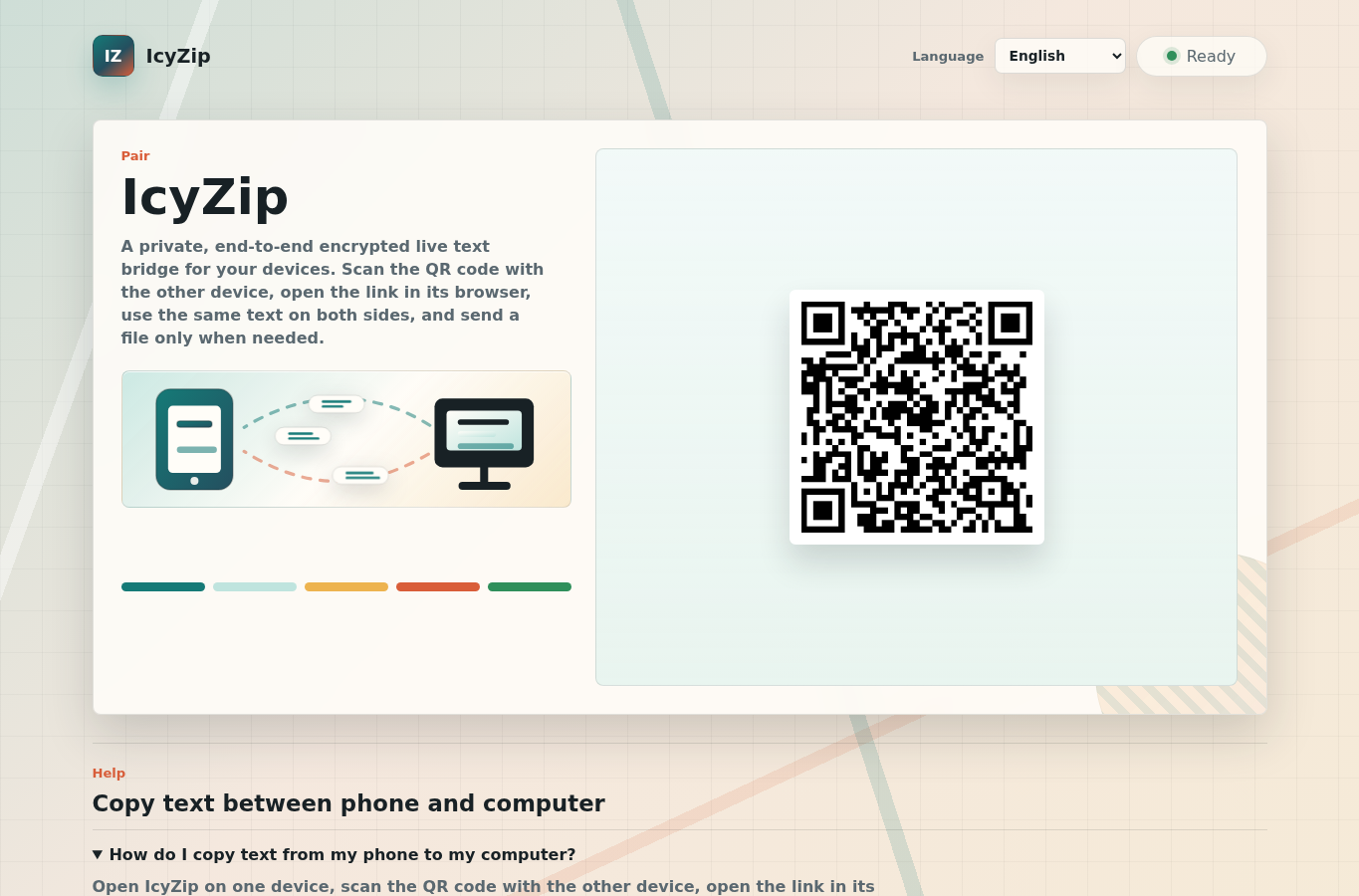
Share text between devices in one QR-paired browser text field. Copy links, codes, notes, and short instructions between phone and computer. No account, app install, email, or cloud folder setup.
How it works
IcyZip is built for the small moments where a link, code, address, note, or command needs to move between devices quickly.
Start on the device that should display the QR code.
Use the other device to scan the QR code or open the pairing link in its browser.
Type or paste text into the shared field. The paired browser can copy it immediately.
Use cases
Move a link, note, address, or short code from a mobile browser to a laptop or desktop.
Send a URL, setup instruction, command, or one-time note to a phone browser.
Use a QR-paired browser session when copy/paste between ecosystems is awkward.
Use the file action only when text is not enough and both browsers stay connected.
Device guide
The useful question is not whether both devices share an operating system. It is whether each device can open a current browser, reach IcyZip over HTTPS, and remain online while the text is handed over.
Open the QR scanner inside IcyZip where supported, or use the phone camera and follow the pairing link. If the browser asks for camera permission, allow it only while scanning. You can deny it and use an ordinary camera app or a copied pairing link instead.
Keep the computer page visible while the phone joins. Chrome, Edge, Firefox, and Safari can all provide the basic web features, but clipboard prompts, camera access, background throttling, and download behavior vary by browser and policy.
You may start on either device. When the phone displays the first QR code, open IcyZip on the computer and use the pairing-link scanner or transfer the link in another controlled way. The live text surface is bidirectional after connection.
Treat the receiving screen and its browser storage as part of the privacy boundary. Clear the field, disconnect, close the tab, and remove any copied text from local clipboard history when another person controls the device.
Clipboard behavior
IcyZip does not silently read the browser clipboard. Its text field is a deliberate handoff surface, so you remain in control of which text enters the paired session and which text returns to a local device.
Use the Paste button or the browser's normal paste command. On Android, IcyZip avoids triggering a native clipboard-read prompt merely by focusing the field; the user action supplies the text. Some browsers may still show their own permission or confirmation UI.
Select the received text or press Copy. If programmatic clipboard writing is blocked, the text remains visible and selectable, so the browser's context menu or keyboard shortcut remains available.
The current browser clients resolve active edits and reconnects around one shared text state. Wait for Connected before relying on a new edit, especially after changing networks or returning from a backgrounded phone tab.
A reload can preserve the current draft and pairing material in that tab's sessionStorage. A new tab creates an independent primary pair rather than silently taking over another tab's device connection.
Recovery
Temporary transport loss is not treated like a deliberate Disconnect. Current clients retry the session and repair stale connection state while keeping the user's tab draft available.
Bring the tab to the foreground and allow a short reconnect. The client checks whether a WebSocket that still says Connecting is actually making progress; a stale transport is replaced instead of leaving the phone stuck indefinitely.
The browser's online and visibility events trigger recovery. Watch for Connected, then make a small edit and confirm that it appears on the paired view.
If the earlier pair has expired, IcyZip creates a fresh pairing, shows a new QR code, removes the obsolete pairing id from the address, and guides you through scanning again.
For one document or image, use the dedicated phone-to-computer file-transfer guide. For the protocol, encryption design, retained pairing state, and automated compatibility coverage, read How IcyZip Works.
Security and privacy
Current product clients encrypt live text before transport. The paired browser decrypts it and keeps the handoff inside the active browser session.
The paired browsers keep one live text surface for quick handoff. A browser tab may keep its current text locally during that tab session.
Current browser clients encrypt text before sending it through the service. The paired browser decrypts it.
The service processes timing, browser class, pairing activity, and message sizes to connect and operate the two browser views. The privacy policy provides the full details.
When text is not enough, the same active pair can transfer one selected file.
FAQ
Open IcyZip on the computer, scan the QR code with the phone, then paste text into the shared live text field. The computer browser can copy it immediately.
Open IcyZip on the computer, scan the QR code with the phone, then type or paste text on the computer side. The phone browser receives the same text in the paired field.
No. IcyZip uses QR pairing instead of account login, email, or cloud-drive setup.
The main workflow is text. If both browsers are connected, you can also send one selected file from either side.
Current product clients encrypt live text in the sending browser and decrypt it in the paired browser. The privacy policy explains the operating data used to connect the pair.